DivX Player keeps its controls out of the way until you need them. Recent versions have added several that make it much easier to find a moment in a long video. Here is what each one does.
A clean screen while you watch
During playback the controls hide automatically, so nothing sits on top of the picture. Move the mouse over the player to bring them back.
The playback bar
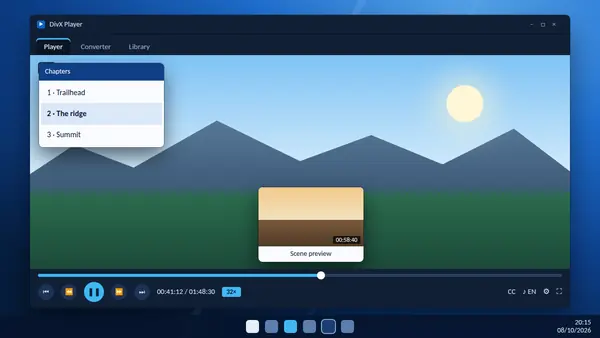
The bar along the bottom shows how far through the video you are. Click anywhere on it to jump to that point, or drag the handle.
Hover over the bar without clicking and a small thumbnail shows the scene at that position. It lets you look for a moment visually, without jumping around and waiting.
Fast-forward and rewind
The fast-forward and rewind buttons move smoothly through the video. Each press raises the speed, up to 32 times normal. Press play to return to normal speed.
Frame by frame
Pause the video and use the frame buttons to step forward or back one frame at a time. This is useful for sports footage, for studying an edit or for finding the exact frame for a screenshot.
Chapters
If the file has chapter points, as many MKV files and DivX discs do, you can jump straight from scene to scene. Videos without chapters simply do not show the option.
Audio tracks
Open the audio menu to switch between soundtracks, such as another language or a director's commentary. The change is immediate and playback carries on.
Subtitles
The subtitle menu lists the tracks inside the file, lets you load a file and opens the online subtitle search. The settings there control font, size and colour.
Pin the controls you use
You can customise the playback bar. Keep it minimal, or pin the functions you use most so that they are always one click away.
Full screen and 360-degree video
Switch to full screen with the button on the bar. With 360-degree video, drag with the mouse to look around the scene.
Volume
The player remembers the volume level from your last session, so you do not have to set it again each time.
A quicker way to work
For a long film, combine the tools. Use chapters to reach the right section, the thumbnail preview to find the scene, then frame stepping for the exact moment.